SHORT ANSWER
To stop doomscrolling, do not try to fix your whole day at once. Pick the moment when you scroll without deciding to, such as in bed or at the start of work. Block TikTok, Instagram and the other apps for that moment with a schedule, put a pause before any access, and give each planned visit an end. Screen Time can set the schedule; an app blocker such as Bouncer adds the pause and the end.
What doomscrolling is
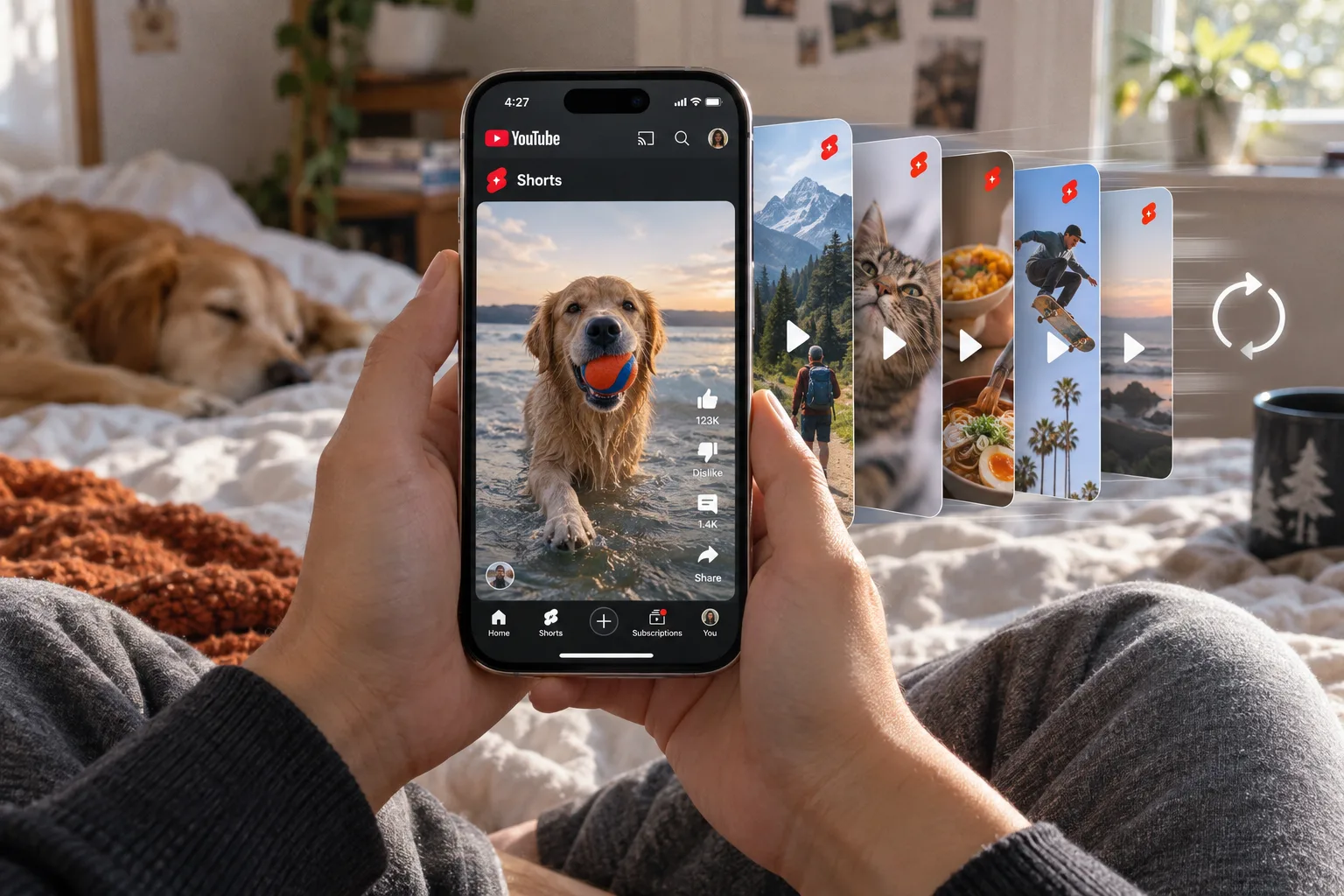
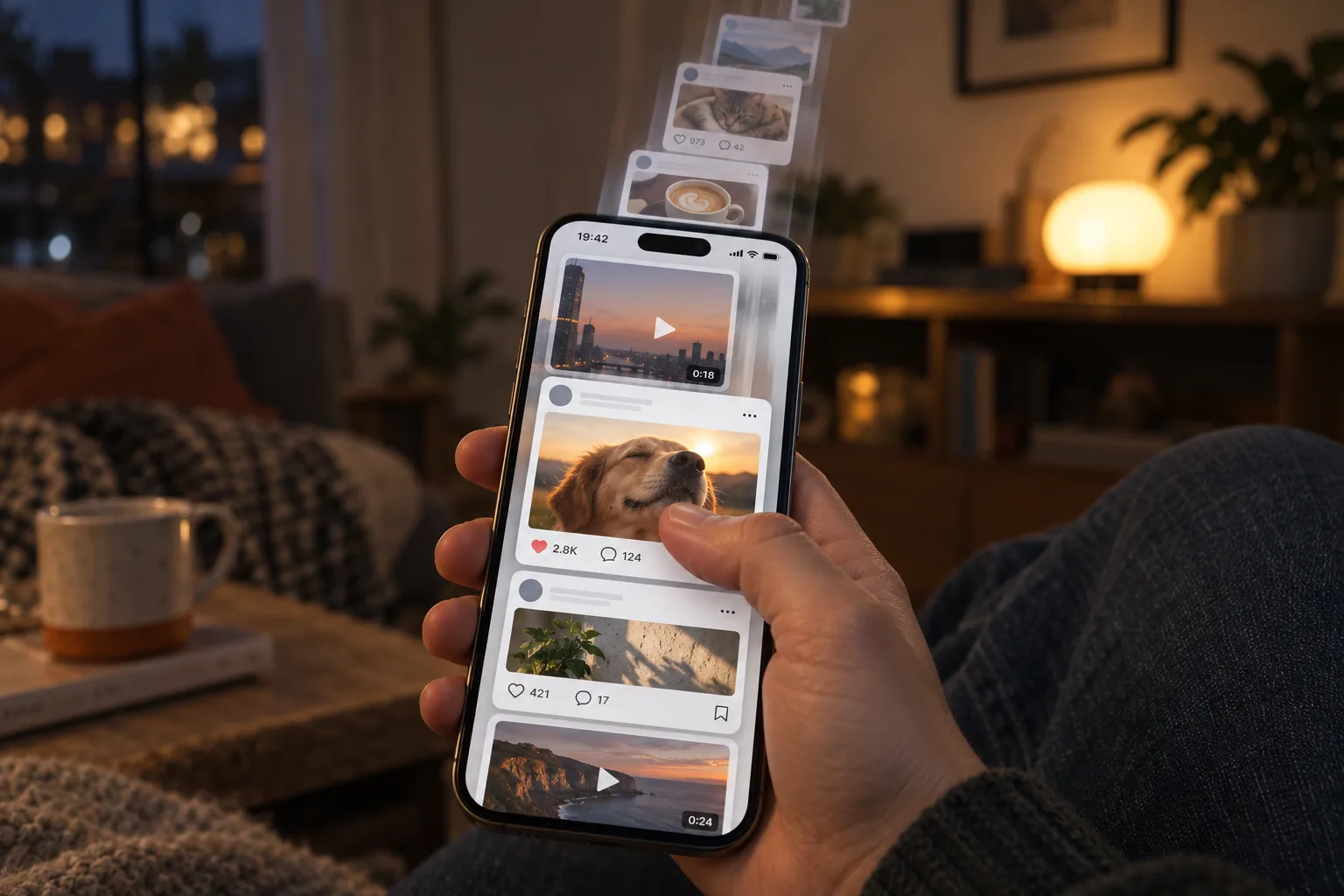
Doomscrolling originally described spending too much time on negative news. Today many people use the word for any scrolling that continues after they wanted to stop: one more video, one more post, then half an hour is gone. These apps are built for infinite scrolling, so stopping depends on a decision you make each time.
Name the moment, not the whole day
“Use my phone less” leaves every decision open. “No social media in the first hour of work” gives you a boundary you can set and check. Notice the moment that repeats: the alarm has just rung, a task has become difficult, or you are in bed.
Choose one moment for your first rule. A small, specific boundary is easier to keep and to review: did the scrolling stay out of the time you wanted to protect?
Block the apps for that moment
Select only the apps that pull you into scrolling in that moment, and keep necessary tools available. For bedtime or work hours, use a scheduled window with a clear end. For scattered visits, use a daily limit, but note that a daily allowance does not protect your evening if it is not used up.
With Screen Time, use Downtime on iOS 26 or a Screen Time Schedule on iOS 27. Apple notes that on iOS 26, limits can be ignored once reached by default unless Block at Downtime is on with a Screen Time passcode (details).
🎯 Start with one moment only. One rule you keep is better than five rules you turn off.
Put a pause before access
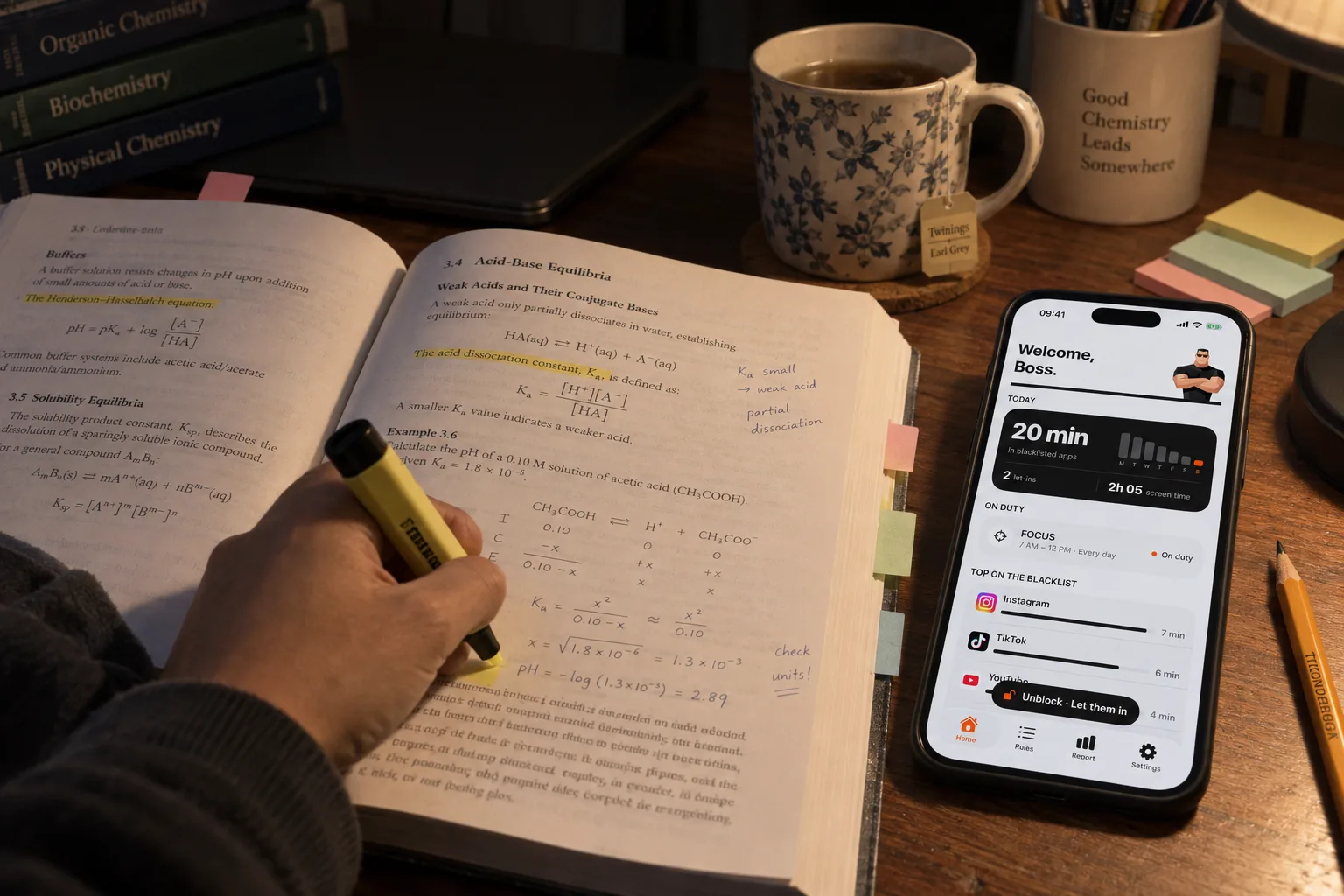
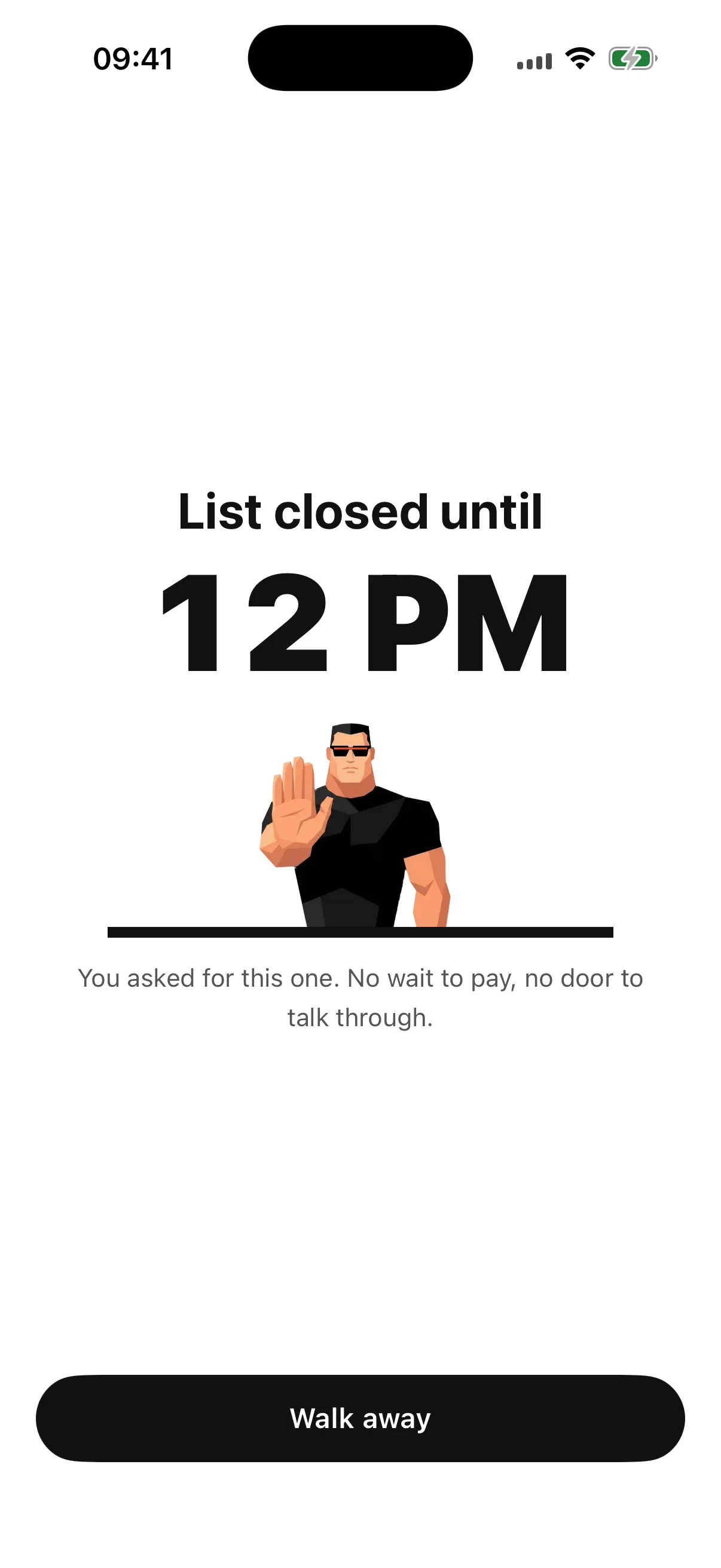
In Bouncer, a blocked app has no unblock button. To get temporary access with Normal or High, you open Bouncer and wait on that screen. Leaving the screen or locking the phone pauses the wait; walking away ends the attempt without access.
Use the pause to decide whether you want to open the app now. You do not need to justify a useful visit. The pause gives the choice you made earlier a place in the decision.
⏸️ If you walk away during the wait, nothing opens, and the next High wait does not grow.
Give each visit an end
If you still choose to enter, Bouncer’s temporary access lasts 5, 10 or 15 wall-clock minutes. High offers fewer choices after successful unblocks. The time keeps running even if you switch apps.
Before you enter, name the task: reply to one message, check one update, find one saved post. A time limit and a purpose give you two signals that the visit is over.
At night and in bed
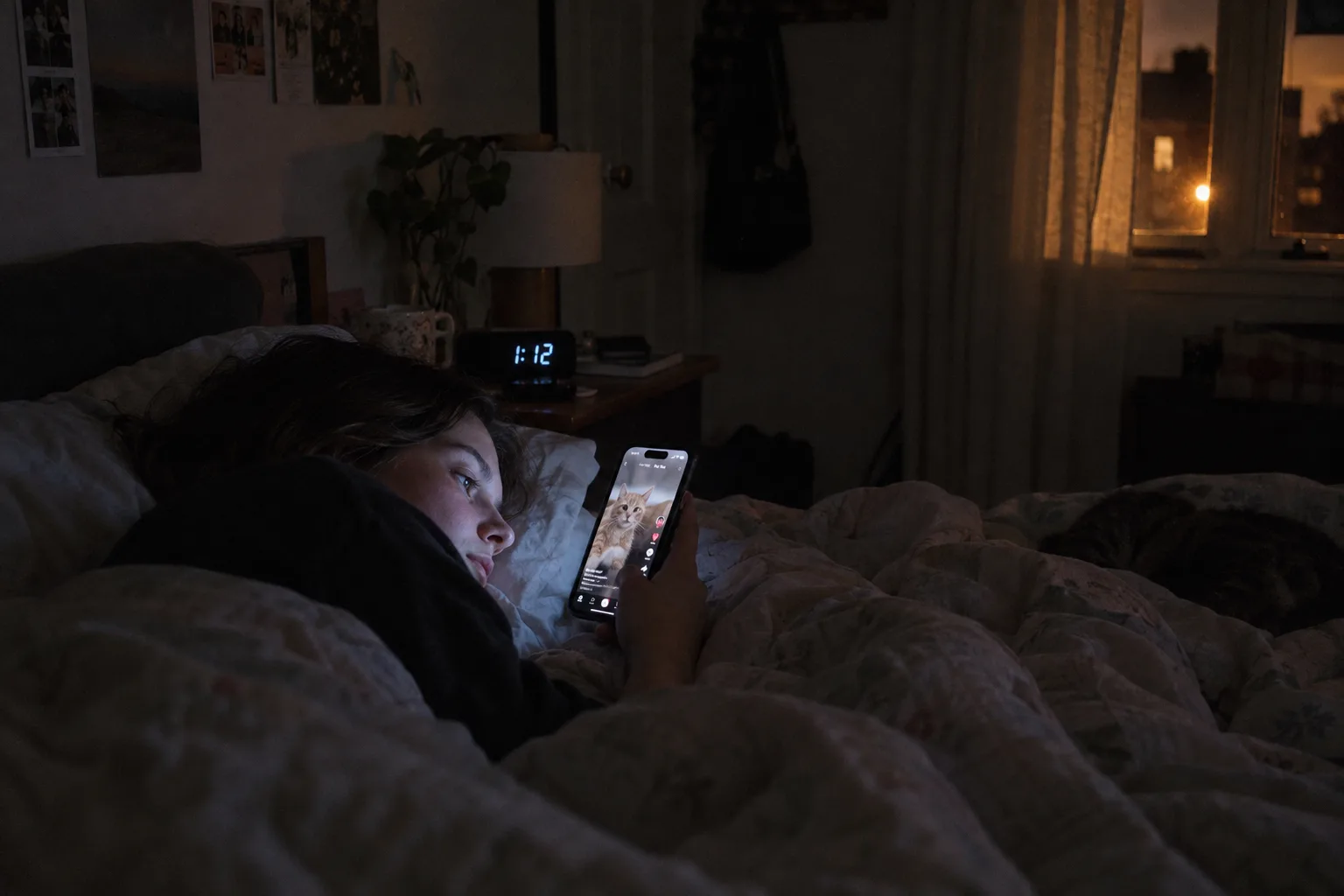
Night is the moment many people want to protect. Set a window that starts before you go to bed and ends after you wake up, for example 10:30 PM to 7 AM. If one tap is always enough to break a reminder, choose a stricter level for that window, such as High or Lockdown. Lockdown keeps apps blocked until the window ends, with one Emergency Pass that returns seven days after use. For TikTok at night, see how to block TikTok on iPhone.
In the morning and while studying
In the morning, a short window after the alarm keeps the first minutes of the day free of endless scrolling. While studying, block social media apps for the length of the session and keep the tools you need for the work. See how to block distractions while studying for a step-by-step setup.
Review without scoring yourself
At the end of the week, ask whether you protected the moments you cared about. Bouncer’s Report shows daily averages for time in blacklisted apps and total screen time. It does not measure what you did with your time, and there is no universal number of minutes that defines success.
If scrolling moved to another moment, decide whether that moment needs protection too. If a rule got in the way of something useful, change its apps or its hours.
Frequently asked questions
What is doomscrolling?
Doomscrolling first described spending too much time on negative news. It is now often used for any scrolling that continues after you wanted to stop.
How do I stop doomscrolling at night?
Block social media apps with a night window that ends after you wake up: Downtime on iOS 26, a Screen Time Schedule on iOS 27, or a Bouncer Rule with a night window and a stricter Level.
Is there an app to stop doomscrolling?
Yes. App blockers use Apple’s Screen Time framework to block chosen apps during a window or after a limit. Bouncer adds a pause before access and gives each visit an end; Lockdown removes temporary access until the window ends.
Do I have to delete my social media apps?
No. You can keep the apps and block them only in the moments you want to protect, such as at night or during work.
Sources
Sources checked on 24 September 2026. External features and offers can change.
A boundary you choose.
Start with a context you want to protect on your iPhone.